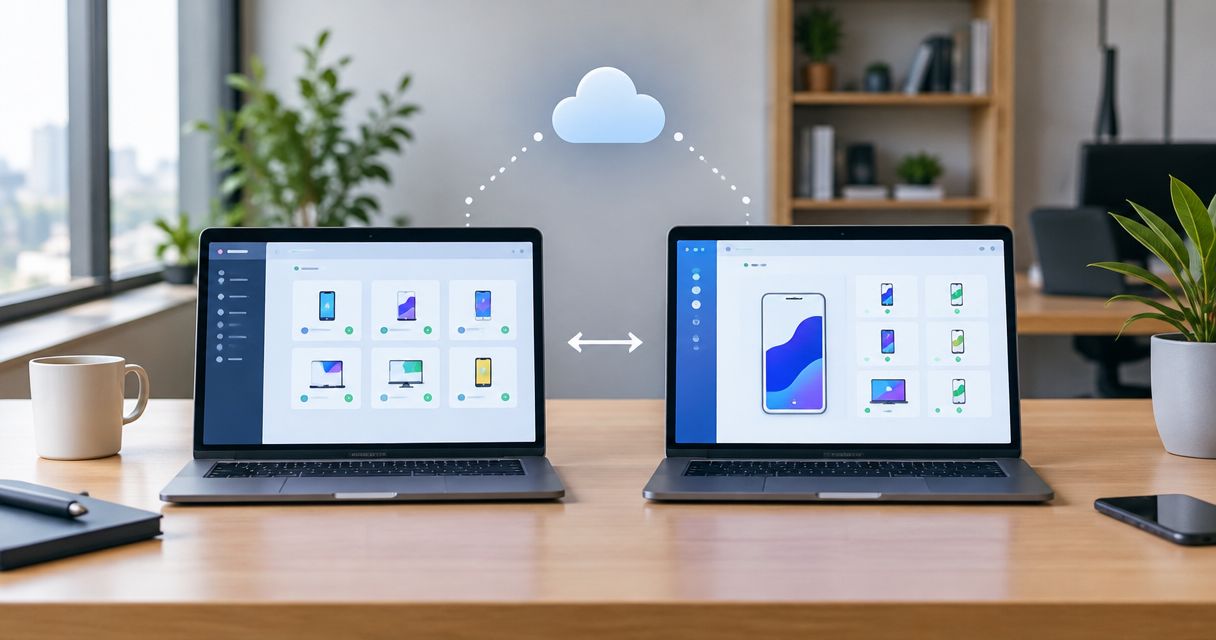
Best overall for local YAML flows: Maestrodeck. Best for cross-platform automation in code: Appium. Best for Android-native UI tests: Espresso. This 2026 guide compares the best mobile app testing tools by the workflow you need: local debugging, native integration, React Native testing, or remote device coverage.
- Maestrodeck leads the best mobile app testing tools for free local execution and inspection of Maestro YAML flows.
- Choose Appium for cross-platform automation in code; choose Espresso or XCUITest for platform-native UI tests.
- Choose Detox for React Native end-to-end testing and BrowserStack for remote real-device coverage.
- Start with a repeatable local smoke flow. Add cloud execution when CI or device coverage requires it.
Why this matters
A mobile testing tool determines where you write tests, how you diagnose failures, and which environments you can exercise. Those decisions affect your release workflow more than the length of a feature list.
Separate test authoring from execution infrastructure. A desktop runner helps you inspect and repeat a flow locally. A remote device service provides another place to execute tests; it does not replace assertions, controlled test data, or failure diagnosis.
Maestrodeck is best for developers who want a free local desktop runner and inspector for Maestro YAML end-to-end tests. Local use does not require paid cloud execution. Add cloud execution when the release workflow needs it, rather than treating cloud as a prerequisite for writing your first test.
What makes the best mobile app testing tools?
Use these criteria for your 2026 shortlist. Pick the workflow first, then the tool.
- Authoring model: Choose between YAML flows, general-purpose code, and platform-native test code. Your team must maintain what it writes.
- Failure diagnosis: Check how you inspect the application, identify the failing action, and reproduce the failure locally.
- Platform fit: Android-only, Apple-only, React Native, and cross-platform applications need different testing boundaries.
- Execution environment: Distinguish local execution, simulators, emulators, remote browsers, and physical devices. They answer different questions.
- Release integration: Decide which tests belong in pull-request checks and which require a separate environment or device matrix.
- Maintenance burden: Prefer selectors, fixtures, and assertions that express application behavior rather than incidental screen layout.
No single tool wins every criterion. A native test framework can fit platform-specific UI behavior well while a YAML runner provides a more direct authoring workflow across application targets.
Mobile testing tools at a glance
The 2026 shortlist assigns each option a distinct role. The order starts with local test authoring, then moves through code-based frameworks and remote execution.
| Tool | Best for | Standout capability | Key limitation |
|---|---|---|---|
| Maestrodeck | Local Maestro YAML flow development | Desktop runner and inspector for iOS, Android, and web flows | UI flows do not replace lower-level tests |
| Appium | Cross-platform automation in code | Driver-based automation across mobile platforms | Drivers and platform environments require configuration |
| Espresso | Android-native UI integration | Android UI testing with synchronization support | Android-only scope |
| XCUITest | Apple-native UI automation | UI tests within the XCTest and Xcode workflow | Apple development environment required |
| Detox | React Native end-to-end testing | Synchronization-aware application testing | Application integration and configuration are required |
| BrowserStack | Remote physical-device coverage | Hosted real-device testing | Remote sessions do not replace local debugging |
1. Maestrodeck: best mobile testing tool for local YAML flows
Maestrodeck provides a free, source-available desktop runner and inspector for writing and executing Maestro YAML end-to-end flows. It targets iOS, Android, and web applications. Start here when you want to work on a flow locally before adding remote execution.
Keep the product boundary explicit: the desktop runner is not the Maestro framework itself. Maestro supplies the underlying YAML testing framework; the desktop product provides a runner and inspection workflow around those flows. The names do not establish affiliation.
Best for: Developers and QA engineers building a local YAML-based smoke suite.
Maestrodeck pros:
- Free local desktop execution, without requiring paid cloud use.
- Inspection and execution within a desktop workflow.
- Maestro YAML flows across the stated mobile and web targets.
- Source availability for examining the implementation.
Maestrodeck cons:
- End-to-end UI flows do not isolate application logic like unit tests.
- Local execution alone does not establish physical-device coverage.
- Source-available licensing is not the same as open-source licensing; review the actual license before reuse.
Keep paid cloud execution optional. Move a flow into CI or remote execution after you can repeat it locally and explain its failures. Do not turn an environment change into your first debugging task.
Verdict: Buy into the local-first workflow. Use the free desktop runner before adding cloud execution.
2. Appium: best mobile testing tool for cross-platform code
Appium provides a driver-based automation framework for mobile applications. Its client libraries let you express tests in general-purpose programming languages rather than adopting YAML as the test format.
Choose Appium when your team wants code-based test infrastructure across mobile platforms. Share helpers and application-level concepts where they genuinely match, but keep platform-specific selectors and behavior explicit.
Best for: Teams maintaining cross-platform mobile automation in code.
Appium pros:
- Supports mobile automation through platform-specific drivers.
- Fits teams that want reusable code and test-library integration.
- Provides automation for native and hybrid application contexts.
- Separates client test code from the automation server and drivers.
Appium cons:
- Driver installation and compatibility add configuration work.
- Android and iOS environments still need separate preparation.
- Shared test code does not eliminate platform-specific behavior.
Build a small helper layer, not an elaborate abstraction before the first useful test. A test that opens the app, performs a meaningful action, and checks the result gives you a concrete basis for deciding what to reuse.
Treat infrastructure failures separately from assertion failures. A session that never starts is not evidence that the application journey failed.
Verdict: Buy for code-first cross-platform automation. Skip it when your immediate goal is a simpler local YAML workflow.
3. Espresso: best mobile testing tool for Android-native UI tests
Espresso is an Android UI testing framework that fits Android instrumentation tests. Its synchronization model helps coordinate test actions with application UI activity, while idling resources provide a mechanism for representing additional asynchronous work.
Use Espresso when Android is the application boundary and your developers want UI tests close to the Android codebase. It is not a substitute for an iOS test strategy.
Best for: Android teams testing native UI behavior within their development workflow.
Espresso pros:
- Integrates with Android instrumentation testing.
- Provides APIs for finding views, performing actions, and checking assertions.
- Supports synchronization with application activity.
- Allows explicit handling of asynchronous work through idling resources.
Espresso cons:
- Does not provide an iOS testing layer.
- Application-specific asynchronous work can require synchronization setup.
- Android UI tests do not establish web or cross-platform coverage.
Use stable view identifiers and clear assertions. Avoid making a test depend on incidental wording when the behavior you need to verify is a state change.
Keep platform-level detail where it adds value. If the acceptance criterion concerns an Android-specific screen interaction, a native test can express that boundary directly without pretending the same implementation exists elsewhere.
Verdict: Buy for Android-native UI coverage. Skip it as the sole framework for a mixed Android and iOS suite.
4. XCUITest: best mobile testing tool for Apple-native UI automation
XCUITest provides UI automation within Apple's XCTest tooling. Developers write UI tests in the Xcode ecosystem and interact with applications through UI elements and accessibility-related queries.
Choose XCUITest when your team wants Apple-native test code and direct integration with its Apple development workflow. Keep Android coverage in a separate framework rather than forcing an Apple-only tool into a cross-platform role.
Best for: iOS teams maintaining UI automation alongside Xcode projects.
XCUITest pros:
- Fits the XCTest and Xcode development workflow.
- Supports application launch, UI interaction, and assertions.
- Uses element queries to express screen-level behavior.
- Allows UI testing on supported Apple simulators and devices.
XCUITest cons:
- Requires an Apple development environment.
- Does not cover Android applications.
- Device execution introduces environment and signing requirements that simulator runs do not answer.
Give important controls stable accessibility identifiers. A test should identify the intended control, not depend on the control's position among unrelated elements.
Separate simulator confidence from device confidence. A passing simulator run proves that the tested journey passed in that simulator configuration; it does not establish that every supported physical device behaves identically.
Verdict: Buy for Apple-native UI automation. Skip it when one shared framework must cover Android as well.
5. Detox: best mobile testing tool for React Native workflows
Detox is an end-to-end testing framework used with React Native applications. Its synchronization-aware approach coordinates test execution with application activity rather than making arbitrary delays the default testing strategy.
Choose Detox when the team can integrate testing into the React Native application's build and development workflow. Treat that integration as part of adopting the framework, not as a task to postpone until the suite grows.
Best for: React Native teams that want application-integrated end-to-end tests.
Detox pros:
- Targets a common React Native testing workflow.
- Provides APIs for UI interaction and assertions.
- Coordinates tests with application activity through synchronization.
- Fits teams that keep test setup close to application code.
Detox cons:
- Requires application build and test configuration.
- Custom asynchronous behavior can need synchronization attention.
- A React Native-focused workflow is not a universal fit for every mobile stack.
Start with a journey whose data and background activity you control. Diagnose the application state when a test waits unexpectedly; do not immediately hide the problem behind a longer timeout.
Keep the testing contract clear. A test needs to know when the application is ready for its next action, and the application must expose a state that the test can assert.
Verdict: Buy for React Native teams prepared to own the integration. Hold if that integration cannot enter the release workflow yet.
6. BrowserStack: best mobile testing option for remote devices
BrowserStack provides hosted application testing on real mobile devices. Its role in this shortlist is execution environment coverage: exercising an application outside the developer's local simulator or emulator setup.
Consider remote devices when a release question depends on physical hardware or a device configuration your team cannot cover locally. Keep the test framework decision separate from the device-service decision.
Best for: Teams that need remote physical-device testing.
BrowserStack pros:
- Provides access to hosted real mobile devices.
- Supports manual application testing and automated testing workflows.
- Extends coverage beyond a developer's local environment.
BrowserStack cons:
- Remote execution depends on service access and connectivity.
- Uploading builds and configuring sessions adds workflow steps.
- A remote failure still requires application-level diagnosis.
Choose devices against your release requirements, not the size of a service's catalog. Check current device support and framework integration in official documentation before committing your suite to a remote environment.
Verdict: Buy for a defined physical-device coverage gap. Hold if your immediate problem is writing and debugging the first test.
How we ranked
This 2026 ranking prioritizes workflow fit: authoring model, failure diagnosis, platform scope, execution environment, release integration, and maintenance. It is not a performance benchmark or a claim that every option was tested against the same application.
The local desktop runner leads because the guide starts with developers adding end-to-end tests to a release workflow. Native frameworks and remote device services occupy separate roles rather than competing on an invented universal score.
Which mobile testing tool should you choose?
Start with the smallest workflow that answers a release question. For a 2026 YAML-based setup, use the free local runner first. For an established code-based suite, choose the framework that matches your application and development environment.
Use this sequence before expanding execution coverage:
- Pick a journey: Start with 1 smoke flow for an important user action.
- Prepare test data: Define the starting account, permissions, and application state.
- Assert the result: Include 3 checkpoints: launch state, completed action, and visible outcome.
- Repeat locally: Confirm the flow passes from its defined starting state.
- Add remote execution: For a cross-platform app, evaluate 2 platform targets separately: iOS and Android.
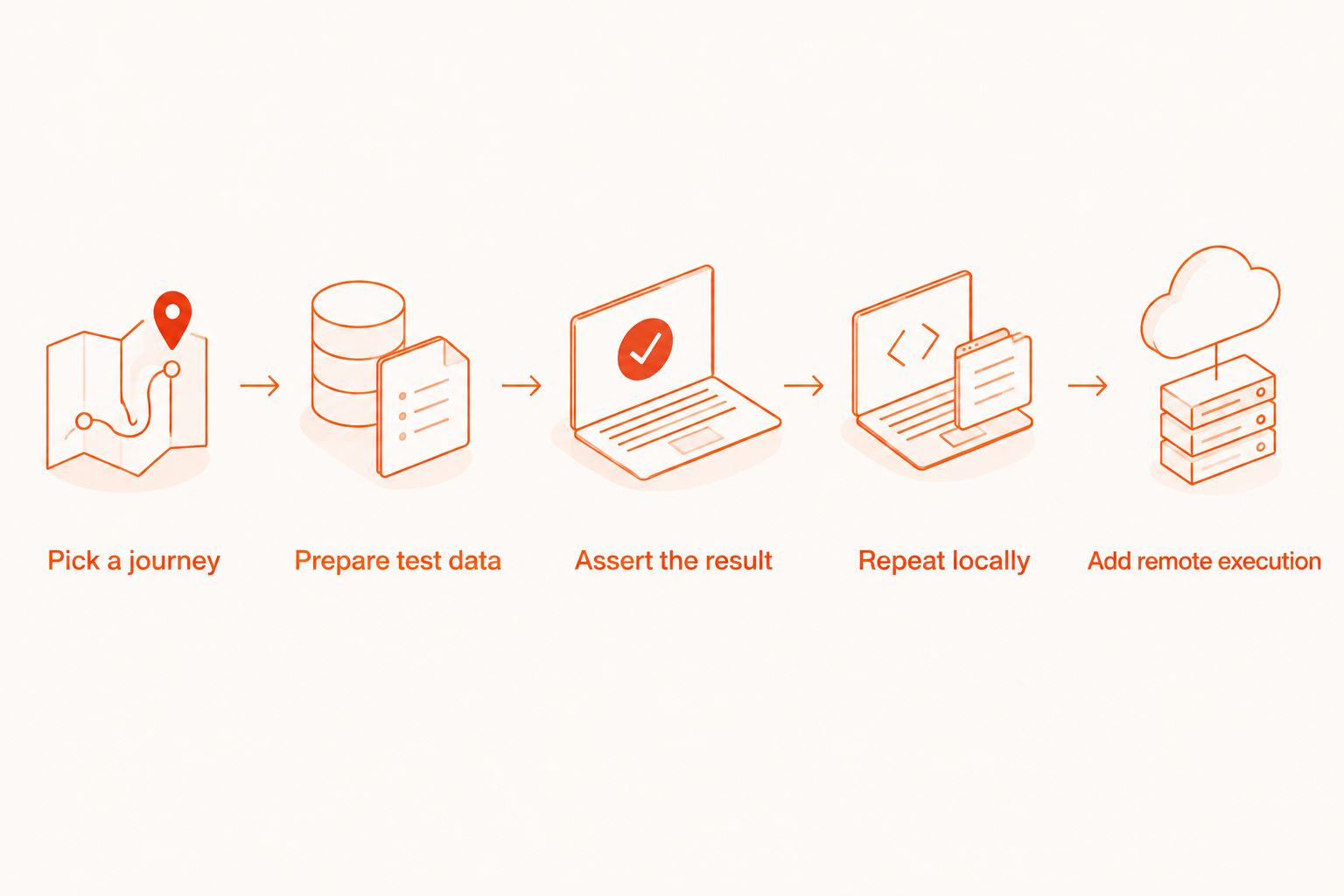
Use cloud execution when CI integration or broader environment coverage becomes the next requirement. Keep simulator, emulator, browser, and physical-device results distinct in your release reporting.
Start with a local flow
Use the free desktop runner first. Consider optional cloud execution when your workflow needs it.
FAQ
What's the best mobile app testing tool for local YAML flows?
Maestrodeck is the best fit in this shortlist for a free local desktop runner and inspector for Maestro YAML flows. It supports writing and executing end-to-end flows for iOS, Android, and web apps.
Is Maestro Deck the same as the Maestro framework?
No. The desktop runner provides an execution and inspection workflow for Maestro YAML flows, while Maestro is the underlying testing framework. Shared terminology does not establish affiliation.
Do I need paid cloud execution to start mobile end-to-end testing?
No. Start with local execution and a repeatable flow. Add paid cloud execution when CI integration or additional execution environments become a requirement.
Should I choose Appium or Espresso for an Android app?
Choose Espresso for Android-native UI tests and Appium when code-based cross-platform automation is the requirement. Appium's broader scope also brings driver and environment configuration work.
Is XCUITest a replacement for Android testing?
No. XCUITest belongs to Apple's testing ecosystem and does not provide Android coverage. A mixed-platform application needs an Android testing strategy as well.
Does a passing emulator test prove the app works on physical devices?
No. A passing emulator test establishes the result for that emulator environment. Physical-device testing answers a separate coverage question.
When should a React Native team choose Detox?
Choose Detox when the team wants application-integrated end-to-end testing and can maintain the required build and synchronization configuration. Begin with a controlled user journey before expanding the suite.
Does source-available mean open source?
No. Source-available means the source can be inspected under its stated license; it does not automatically grant the permissions associated with an open-source license. Review the license before modifying, redistributing, or incorporating the code.
One last thing
Before moving a failing flow to cloud execution, reset the application and repeat it locally from the documented starting state. If that state is unclear, another execution environment adds another variable rather than explaining the failure.
For your 2026 release checklist, record both the tested journey and its environment. A green result without an environment label leaves the coverage boundary unclear.