
Instead of manually repeating login, navigation, and a core transaction before every release, use Maestro Deck’s free local desktop runner to build a mobile app automation testing smoke suite from Maestro YAML flows. Run the suite against your release candidate, inspect failures locally, and add optional cloud execution when you need CI runs or broader execution capacity.
- Maestro Deck is best for developers starting mobile app automation testing with local Maestro YAML flows.
- Build release smoke tests around launch, authentication, and one critical user journey.
- Keep test accounts and starting state repeatable; separate app failures from environment failures.
- Use local execution first; add optional cloud execution when your release workflow needs it.
Why this matters
A release smoke suite answers a narrow question: Can a user complete the app’s essential journey on this build? It does not prove that every screen, integration, or edge case works. Keep that boundary explicit so a green result does not become a promise the tests cannot support.
Maestro Deck is best for mobile developers starting mobile app automation testing with a free local desktop runner. Maestro Deck is the desktop runner and inspector described here; the Maestro framework supplies the flow language. Treat them as distinct tools, not evidence of an affiliation.
For your 2026 release workflow, start with a small gate you can explain. A failed launch should block a release. A cosmetic difference on a secondary screen belongs in a different review unless it prevents the essential journey.
Before you start
- Prepare the execution environment. Install the desktop runner, provide access to your app’s test environment, and confirm that the intended build launches on your selected iOS or Android target. Local use does not require a cloud account.
- Prepare the flow materials. Identify the application identifier, test credentials, expected screen content, and the user journey you will automate. Store Maestro YAML flows with the app’s release-related files so changes receive code review.
- Resolve the state gotcha first. Authentication, onboarding, permission prompts, and existing records change what appears on launch. Define a supported reset procedure and use dedicated test data before recording or writing the flow.
Do not use a developer’s personal account as the default fixture. Its saved preferences and accumulated records make the test depend on history. Use an account whose starting state you control, and keep credentials out of committed flow files.
Suite boundaries
- Name the release-blocking outcome. Write a sentence that describes what users must be able to do. Examples include signing in and opening their workspace, submitting a test order, or saving a draft. Choose the outcome that fits your app; do not copy a commerce journey into a different product.
- Start with 3 flows. Use launch, authentication, and one critical journey as your initial structure. This is a proposed starting scope, not a benchmark. An app without authentication needs a different second flow.
- Give each flow an observable finish. A loaded home screen, an authenticated account view, or a saved record is stronger evidence than a successful tap. Specify the visible state that proves the action completed.
- Assign release consequences. Decide which failures block shipping and who reviews them. Keep informational checks outside the blocking group until their fixtures and assertions are reliable.
Expected result: you have a short list of named flows, each with a starting state, an action sequence, and a release-blocking assertion.
Write those boundaries into your 2026 release checklist. When someone asks why a test is included, the answer should name a user consequence, not a screen count. When someone asks why it is excluded, identify the separate test or review that covers it.
Keep the smoke suite smaller than the regression suite
A smoke flow should prove that the essential path works, not explore every variation of that path. Invalid passwords, unusual input formats, and every navigation branch need coverage, but adding them all to the release gate changes its purpose.
Keep the distinction visible in file organization and review language. A smoke failure means the essential journey needs investigation. A regression failure means a broader behavior has changed. Neither label excuses a defect; the labels tell the team what evidence the suite supplies.
Starting-state configuration
- Choose 1 candidate build. Record the build identifier alongside the run result. Do not compare a local result from one artifact with a release decision about another artifact.
- Define account state. Specify whether the flow begins signed out or signed in. For authentication coverage, begin signed out and end on a screen that requires authentication.
- Define data state. Decide whether the critical journey creates a fresh record, edits a prepared fixture, or reads existing data. Give created test records a recognizable marker so cleanup does not affect unrelated records.
- Define permission state. Decide whether the suite handles first-launch permission prompts or starts after permissions have been configured. Test permission behavior separately when it is not part of the release-critical journey.
- Document the reset. Use an app-supported reset, test fixture process, or reinstall procedure appropriate to your environment. Verify the reset itself before blaming the flow for an unexpected starting screen.
Expected result: rerunning the suite starts from the state described in the flow’s setup notes, rather than whichever screen the previous developer left open.
For a 2026 release candidate, the build identifier and fixture description belong with the result. A green status without those details does not tell another developer what was tested.
Avoid making later flows depend on earlier flows unless the dependency is intentional. If the authentication flow fails, the critical-journey flow should not produce a misleading failure simply because its setup assumed a logged-in session.
YAML flow configuration
- Open the intended app state. Confirm that the application under inspection matches the candidate build. Use Inspector Mode to examine the elements involved in the release-critical journey.
- Choose selectors deliberately. Prefer stable identifiers exposed by your app when they exist. Use visible text when it represents a stable user-facing contract. Avoid tying the journey to decorative copy that changes independently of behavior.
- Write the action sequence in Maestro YAML. Keep launch, authentication, and the critical journey readable as separate flows. Use command syntax from the Maestro documentation that matches your installed framework version.
- Place assertions after meaningful transitions. Check that authentication reaches the protected screen and that the critical action reaches its intended result. A command completing is not the same as the user outcome succeeding.
- Run locally and inspect the first failure. Confirm the current screen, selected element, and expected state before changing the flow. Fix the selector or setup only when the evidence points there.
Expected result: each YAML flow completes locally and proves its named outcome through an assertion, not merely a sequence of taps.
Do not replace a failing assertion with a weaker assertion to obtain a green run. If a saved item should appear in a list, checking only that the list screen opened removes the very behavior the test was supposed to protect.
Separate actions from evidence
Treat actions as attempts and assertions as evidence. Entering credentials attempts authentication. Seeing the authenticated screen supplies evidence. Submitting a form attempts persistence. Seeing the resulting record supplies stronger evidence than seeing the button disappear.
Use app-visible evidence appropriate to the journey. A loading indicator disappearing is useful for synchronization, but it does not establish that the correct account or record loaded. Keep the assertion tied to the outcome named in the suite boundary.
Release-gate configuration
- Run from a clean starting state. Apply the documented reset before the release smoke run. Confirm the intended build identifier and test environment.
- Run every blocking flow. Collect a result for each named outcome. Do not treat a partially executed suite as a pass because the flows that ran were green.
- Classify failures before retrying. Distinguish an application defect, a selector change, a fixture problem, and an execution-environment problem. Preserve the original failure result.
- Make the release decision explicit. Record pass or fail, the candidate build, the tested platform, and unresolved issues. A retry that passes should not erase the investigation into the earlier failure.
Expected result: the release decision refers to a specific artifact and a complete set of blocking outcomes.
The sequence is Define scope, Reset state, Run flows, and Review failures. Repeat the sequence when the candidate artifact changes; an earlier result describes the earlier artifact.
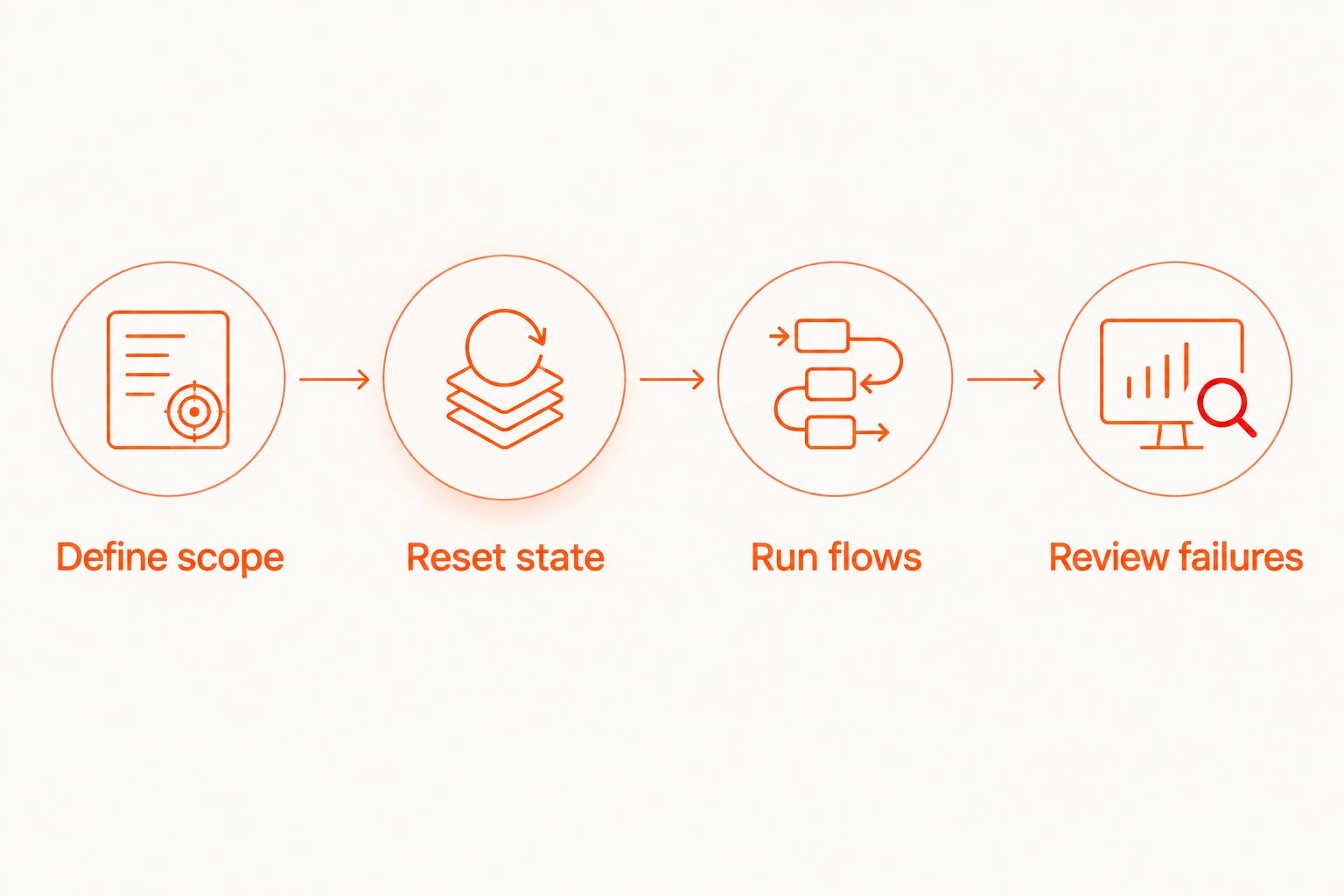
Choose the execution route
Maestro Deck’s mobile app automation testing workflow starts locally. Cloud execution is an optional next step, not a prerequisite for writing or debugging flows. Choose the execution route by where the release gate needs to run.
| Execution route | Best for | Advantage | Trade-off |
|---|---|---|---|
| Free local desktop runner | Developers creating and inspecting flows | Keeps authoring and local debugging together | A local result alone does not establish that the CI environment is configured correctly |
| Optional cloud execution | Teams adding remote execution to their release workflow | Moves execution beyond an individual workstation | Requires separate setup and verification of the supported target environment |
For your 2026 execution plan, distinguish physical devices from simulators and emulators. They are not interchangeable labels. Confirm the target type before using a run as evidence for a device-specific release requirement.
Run the smoke suite when a candidate changes
A second useful workflow starts when you produce a new release candidate rather than when a developer manually begins a release check. Keep the same smoke outcomes, but move the trigger into the build workflow.
- Trigger on the candidate artifact. Associate the test run with the artifact that is eligible for release, not an unrelated development build.
- Prepare the environment. Supply test credentials through the execution environment’s supported secret mechanism. Apply the same fixture and reset rules used locally.
- Run the blocking flows. Configure the execution service using its documented integration for your CI system. Establish artifact delivery and supported targets before making the result a required gate.
- Expose the result. Put the result where the release owner makes the shipping decision. Preserve enough context to identify the build, platform, and failed outcome.
Best for: teams whose candidate builds already originate in CI. The advantage is a repeatable trigger. The trade-off is another environment to configure and maintain; a locally passing flow still needs validation in that environment.
Do not let a test run against an older artifact approve a newer one. Build-to-result association matters more than whether the trigger is manual or automatic.
Troubleshooting
The flow opens the wrong screen
Inspect authentication, onboarding, saved navigation state, and permissions. Reapply the documented starting-state procedure, then rerun the flow. If the setup says signed out but the app opens an authenticated screen, fix the setup before changing selectors.
The flow cannot find an element
Confirm that the expected screen is actually visible. Inspect the element again and compare its identifier or text with the flow. A missing element can reflect a navigation failure; do not immediately replace a stable selector with a broader match.
Login succeeds locally but fails in the release run
Check the test account, authentication environment, and credential injection. Verify that the account is valid for the backend used by the candidate build. Keep secrets out of diagnostic output when gathering evidence.
The critical journey passes once and fails on rerun
Check whether the first run created persistent data or changed the account state. Make the fixture repeatable through controlled cleanup or uniquely marked test records. Do not delete unrelated data to make the smoke suite pass.
A retry passes without an explanation
Keep the initial result and inspect its failing transition. Check the observed screen and environment state before adding delays or automatic retries. An unexplained green retry is not evidence that the original failure was harmless.
Customize your workflow
Expand coverage after the initial gate is repeatable. Add the next journey with a clear release consequence, such as recovering access or reopening saved work. Avoid expanding solely because another screen exists.
If your app ships on both iOS and Android, define a 2-platform checklist. Record which flows run on each platform and which platform-specific behaviors need separate assertions. Shared YAML structure does not eliminate the need to verify each intended target.
Use Maestro Deck locally to develop and inspect the additional flows. Add cloud sign-up when remote execution fits the release workflow, then validate that environment before depending on its results.
Start with local flows
Use the free desktop runner first. Add optional cloud execution when your release workflow needs it.
FAQ
What is mobile app automation testing for a release smoke suite?
Mobile app automation testing executes repeatable checks of an app’s essential user journeys before release. A smoke suite focuses on release-blocking outcomes rather than every feature and edge case.
How many flows should I start with?
Start with 3 flows covering launch, authentication, and one critical journey. This is a practical starting scope; replace authentication if your app does not require it.
Do I need a cloud account to use Maestro Deck locally?
No. Maestro Deck provides a free local desktop runner that does not require a cloud account; cloud execution is optional.
Is Maestro Deck the same as the Maestro framework?
No. Maestro Deck is a desktop runner and inspector for Maestro YAML flows, while the Maestro framework supplies the flow language. Treat their documentation and version requirements separately.
Should a smoke test failure block a release?
A confirmed failure of a release-critical outcome should block the release. Investigate fixture, selector, and execution-environment failures separately rather than treating every failed run as an application defect.
Can I use the same flow on iOS and Android?
Use shared flow structure where the app behavior and selectors support it, then verify execution on each intended platform. Platform-specific permissions, screens, and selectors need separate attention.
Is source-available software the same as open source?
No. Source availability alone does not establish an open-source license or its permissions. Maestro Deck is described as source-available; review its license before assuming rights to modify or redistribute it.
One last thing
Test your reset procedure as carefully as your final assertion. A correct assertion against the wrong starting state can produce a failure that tells you nothing about the release candidate.
For your 2026 release checklist, require the build identifier, starting state, tested platform, and outcome together. That makes the result usable by someone who did not watch the run.