
Best overall for local YAML workflows: Maestro Deck. Best for Android View-based tests: Espresso. Best for Compose interfaces: Compose UI testing. This 2026 guide compares the best UI testing tools for Android apps by test scope, debugging workflow, and release integration—not by how many features fit on a checklist.
- Maestro Deck leads the best ui testing tools for android apps shortlist for local YAML-based end-to-end testing.
- Choose Espresso for Android Views and Compose UI testing for Compose semantics.
- Choose UI Automator for system interactions; choose Appium for WebDriver-based mobile automation.
- Keep local debugging separate from optional cloud execution, and verify physical-device support independently.
Why this matters
Android UI testing covers different boundaries. Checking a Compose component, completing checkout, and interacting with a system permission dialog are different jobs. Picking a tool before defining that boundary creates unnecessary work.
For your 2026 release workflow, start with the failure you need to catch. Then decide where the test belongs: inside an Android test project, in an external end-to-end flow, or across application and system interfaces. Cloud execution is a separate decision, not a substitute for choosing the right test layer.
What makes the best Android UI testing tool?
Use these criteria before choosing a runner:
- Test boundary: Does the test stay inside your app, cross application boundaries, or interact with Android system UI?
- UI model: Can the tool address Android Views, Compose semantics, or the interface exposed to external automation?
- Authoring workflow: Does your team want Kotlin or Java tests, YAML flows, or WebDriver client code?
- Failure diagnosis: Can a developer identify the failed interaction, inspect the target, and reproduce the starting state?
- Execution fit: Can the same test approach fit local development and your intended CI environment?
- Maintenance surface: What changes when labels, layouts, navigation, or test data change?
Choose the narrowest tool that covers the behavior you need to verify. A system-level runner is unnecessary for a component assertion. A component test cannot establish that a user completes an entire release-critical journey.
Android UI testing tools at a glance
The order below favors a developer adding release-level coverage, then separates the alternatives by their distinct testing boundaries.
| Tool | Best for | Standout approach | Key limitation |
|---|---|---|---|
| Maestro Deck | Local YAML end-to-end workflows | Desktop runner and inspector for Maestro flows | YAML end-to-end flows do not replace component assertions |
| Espresso | Android View-based application tests | View matching and synchronized interactions | External asynchronous work can require explicit synchronization |
| Compose UI testing | Compose component behavior | Assertions through the Compose semantics tree | Coverage depends on the semantics your UI exposes |
| UI Automator | System UI and cross-app interactions | Device-level Android UI automation | Broader device state increases setup responsibility |
| Appium | WebDriver-based mobile automation | Client-server automation with platform drivers | Driver and server configuration add maintenance work |
These options are not interchangeable. Espresso and Compose UI testing belong close to Android implementation code. UI Automator addresses a broader device boundary. Appium suits an existing WebDriver approach. The desktop YAML workflow serves developers who want to author and inspect end-to-end flows outside component test code.
1. Maestro Deck: best Android UI testing tool for local YAML flows
Maestro Deck is a free, source-available desktop runner and inspector for writing and executing Maestro YAML end-to-end flows. It supports iOS, Android, and web applications, with a local workflow aimed at developers and QA engineers.
Maestro Deck is the best fit for developers who want local YAML-based Android end-to-end testing with a desktop inspector. Start locally. Treat paid cloud execution as optional when CI or execution scale requires it; local use does not require a cloud account.
The distinction from the Maestro framework matters. The framework defines the underlying flow approach; this product provides a desktop runner and inspector around Maestro YAML flows. Do not treat the names as interchangeable or infer an organizational affiliation.
Maestro Deck pros:
- A local desktop workflow keeps flow authoring and inspection together.
- YAML flows separate end-to-end journeys from Android component test code.
- Android, iOS, and web support fits teams working across those application surfaces.
- Optional cloud execution keeps the local authoring decision separate from hosted runs.
Trade-offs:
- End-to-end flows do not provide the same component-level assertions as native Android test APIs.
- Source-available does not mean open source; assess the license terms against your intended use.
- Simulator or emulator support does not establish physical-device availability. Check that execution requirement separately.
Best for: Developers adding local, inspectable Android release flows in 2026.
Verdict: Buy into this workflow when your immediate requirement is authoring and debugging YAML journeys locally—not asserting internal component behavior.
2. Espresso: best Android UI testing tool for View-based apps
Espresso is Android's UI testing framework for interacting with Views inside an application. You write tests in Android test code, match interface elements, perform actions, and assert results.
Its synchronization model is a central advantage. Espresso coordinates with recognized application activity, while work outside that model can require idling resources. That distinction matters when a screen depends on background processing or a custom asynchronous operation.
Espresso pros:
- View matchers express checks against Android View-based interfaces.
- Tests fit an Android instrumentation test project.
- Synchronization support reduces the need to scatter fixed delays through tests.
- Native test code suits developers already maintaining Kotlin or Java application tests.
Espresso cons:
- Custom asynchronous work can require additional synchronization code.
- System UI and interactions across other applications are outside its main scope.
- View-oriented tests are not the direct equivalent of Compose semantics tests.
Choose Espresso for an existing View-based screen when you need application-focused interaction tests maintained alongside Android code. Keep the scenario focused: enter an invalid value, submit the form, and assert the relevant error rather than chaining unrelated screens together.
Best for: Android developers testing View-based application behavior.
Verdict: Buy into Espresso for native View tests; skip it as the sole answer to system-level or cross-platform automation.
3. Compose UI testing: best Android UI testing tool for Compose
Compose UI testing addresses interfaces through the Compose semantics tree. Tests find semantic nodes, perform supported actions, and assert properties or state exposed through those semantics.
That is a different contract from checking pixels or traversing a traditional View hierarchy. A visible element still needs suitable semantics for a useful semantic assertion. Merged and unmerged semantics trees also affect what a test sees.
Compose UI testing pros:
- Semantics-based assertions match Compose's UI model.
- Tests can focus on individual composables or broader Compose interactions.
- Compose test APIs include control over the test clock for relevant animation scenarios.
- Assertions sit close to the implementation responsible for the behavior.
Compose UI testing cons:
- Missing or unsuitable semantics limit what tests can identify and assert.
- Mixed View and Compose interfaces require attention to the appropriate testing APIs.
- Component-level coverage does not establish that external integrations or full release journeys work.
Use Compose UI testing to check selection state, validation messages, enabled actions, and other behavior exposed through semantics. Keep a separate end-to-end check for the complete user journey when the release depends on multiple screens or services.
Best for: Android teams building Compose interfaces and needing precise semantic assertions.
Verdict: Buy into Compose UI testing for Compose behavior; skip it as a replacement for every release-level test.
4. UI Automator: best Android UI testing tool for system interactions
UI Automator supports device-level Android UI testing across application boundaries. It fits scenarios involving your app alongside system interfaces or other applications.
That broader boundary changes the setup burden. A test involving a permission prompt depends on the permission's starting state. A test involving another application also depends on that application's state and the device environment.
UI Automator pros:
- Cross-app interaction is part of its intended testing scope.
- System UI interactions fit device-level automation.
- Android-focused tests can cover transitions beyond your own activity.
UI Automator cons:
- Device state becomes part of the test's setup and maintenance.
- System interface differences require attention when defining supported environments.
- It does not offer Compose's component-level semantics contract.
Use UI Automator when crossing the application boundary is the behavior under test. Do not choose it merely because a simple in-app assertion is difficult; first check whether the narrower test layer exposes the right target.
Best for: Android tests involving permissions, system interfaces, or cross-app journeys.
Verdict: Buy into UI Automator for device-boundary coverage; skip it for routine component assertions.
5. Appium: best Android UI testing tool for WebDriver teams
Appium is a mobile automation ecosystem built around WebDriver-style client-server interaction and platform-specific drivers. For Android, UiAutomator2 is a commonly used driver; configure the driver appropriate to your application and test requirements.
Choose Appium when your team wants to maintain mobile automation through WebDriver clients. That choice does not make Android and iOS interfaces identical: selectors, platform behavior, and environment setup still need explicit handling.
Appium pros:
- WebDriver clients let teams write automation in supported programming languages.
- Platform drivers separate client test code from device automation details.
- The approach fits teams already maintaining WebDriver-based test infrastructure.
Appium cons:
- Server, driver, device, and client configuration create additional moving parts.
- Shared test code does not eliminate platform-specific behavior or selectors.
- Native component assertions still belong in the appropriate application-level framework.
For a 2026 evaluation, prove the actual Android workflow before committing to a larger shared test architecture. Establish a repeatable launch, a stable target, a meaningful assertion, and useful failure output. Then evaluate any cross-platform reuse.
Best for: Teams deliberately choosing a WebDriver-based mobile automation architecture.
Verdict: Buy into Appium when that architecture fits your team; skip it if its infrastructure solves a problem you do not have.
How this shortlist is ranked
The ranking prioritizes local release-flow authoring, then assigns each alternative a separate use case. It does not claim a measured speed advantage or a universal reliability winner.
Technical distinctions follow the established scope of Android Developers' Espresso, Compose testing, and UI Automator documentation, plus Appium's client-server and driver architecture. For your 2026 implementation, check the current documentation for the versions you install. Version-specific setup belongs in your repository, not in an undated copy of someone else's configuration.
Build a release workflow before expanding coverage
Use this sequence to evaluate your shortlist without turning the trial into an infrastructure project:
- Define scope. Start with 3 release flows: opening the app, completing its primary action, and recovering from a representative error. Choose journeys that match your product.
- Control state. Define 1 state-reset procedure for each flow. Specify the account, stored data, permissions, and backend conditions the scenario needs.
- Run locally. Require 2 consecutive runs from the same defined starting state before treating the flow as a useful baseline. This is an acceptance rule, not a reliability statistic.
- Inspect failures. Change a relevant condition deliberately. Confirm that the failed assertion identifies the broken behavior rather than an unrelated setup problem.
- Add CI. Move the proven flow into your execution environment. Decide separately whether local infrastructure or optional cloud execution fits that environment.
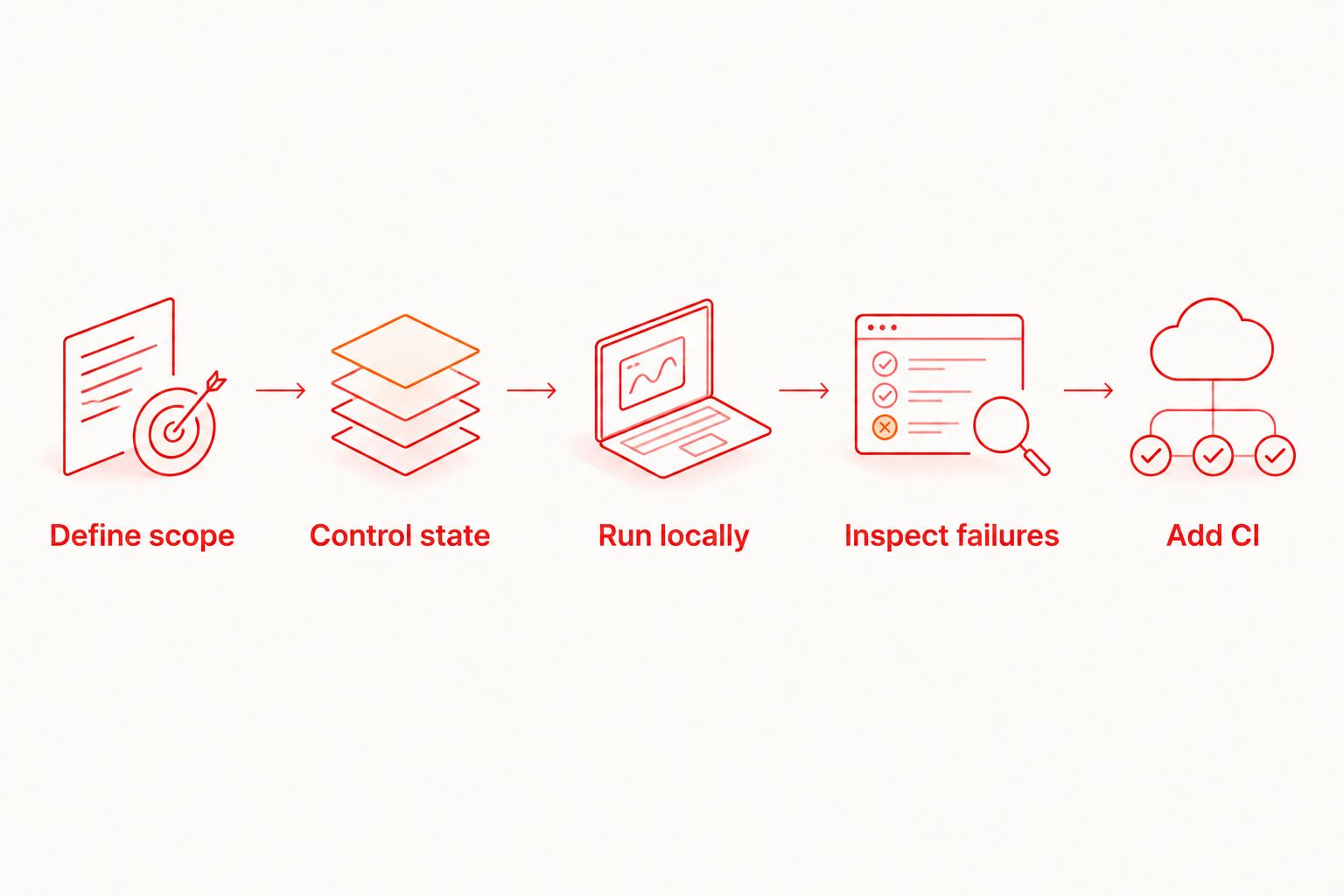
The evaluation goal is a reproducible failure signal. A passing run without controlled state tells you less than a failing run that clearly identifies a broken user action.
Which Android UI testing tool should you choose?
Start with the local YAML runner if you need a release journey you can inspect and repeat. Add Espresso for View-specific assertions, Compose UI testing for semantic behavior, or UI Automator when the journey crosses into Android system interfaces. Choose Appium when WebDriver is an intentional architectural requirement.
Keep hosting separate. A local runner, a test framework, and a cloud execution service solve different parts of the workflow. In 2026, evaluate cloud execution only after deciding which tests run, what environment they require, and which failure evidence your team needs.
Start with a local flow
Use Maestro Deck locally. Evaluate optional cloud execution when your release workflow needs it.
FAQ
What's the best UI testing tool for Android apps in 2026?
Maestro Deck is the best fit on this shortlist for local YAML-based end-to-end workflows. Choose Espresso for Android Views, Compose UI testing for Compose semantics, UI Automator for system interactions, or Appium for a WebDriver architecture.
Should I use Espresso or Compose UI testing?
Use Espresso for Android View-based interfaces and Compose UI testing for Compose semantics. An application containing both UI models can need both testing approaches.
Is Maestro Deck the same as the Maestro framework?
No. Maestro Deck provides a desktop runner and inspector for Maestro YAML flows; distinguish that product from the underlying framework and do not infer an organizational affiliation.
Do I need a cloud account to run local Android tests?
No cloud account is required for the local desktop workflow described here. Cloud execution is a separate option when you need hosted runs or CI execution.
Which tool should I use for Android permission dialogs?
UI Automator is the relevant Android option on this shortlist for system UI interactions. Define the permission's initial state so the expected dialog is part of a repeatable scenario.
Does emulator support mean a service offers physical Android devices?
No. Emulator execution and physical-device execution are different capabilities. Verify the exact execution environment before selecting a hosted service.
Is source-available software the same as open source?
No. Source-available means source code is available under stated terms; it does not by itself establish an open-source license. Review the license against your development, distribution, and hosting requirements.
One last thing
Test the test before expanding the suite. Deliberately break the behavior your assertion protects and confirm the run fails for that reason. A journey that stays green after its expected outcome breaks is not protecting your release.