
Best overall for local Maestro YAML workflows: Maestro Deck, with a free desktop runner and Inspector Mode. Best for native Xcode integration: XCUITest. Best for code-driven, cross-platform automation: Appium. This 2026 guide compares where each fits in an iOS release workflow and when optional cloud execution becomes useful.
- Maestro Deck leads the best UI testing tools for iOS apps shortlist for local Maestro YAML workflows.
- Choose XCUITest when your iOS UI tests belong in Xcode alongside native application development.
- Choose Appium when shared automation languages and cross-platform testing matter more than a YAML-first workflow.
- Start with repeatable local tests. Add cloud execution when CI or broader execution requirements justify it.
Why this matters
Your UI testing tool becomes part of how you investigate broken releases. Choose for the developer who must reproduce a failure, inspect the screen, change the test, and run it again—not just the person setting up automation.
Separate authoring from execution. A desktop runner, a testing framework, and a hosted execution service solve different problems. Buying hosted execution does not decide how you should write tests, and writing tests locally does not require a cloud account.
For your 2026 shortlist, start with one release-critical journey. Make it repeatable on a known app build before expanding device coverage or adding a CI gate.
What makes the best iOS UI testing tools
Use these criteria before choosing a runner or framework:
- Authoring model: Decide whether your team wants Maestro YAML flows, native Swift or Objective-C tests, or code written against Appium APIs.
- Failure investigation: Check how you inspect elements, locate the failed action, and reproduce the failure locally.
- State control: Define the starting account, permissions, app data, and backend conditions. A runner cannot repair an ambiguous test setup.
- Execution environment: Distinguish iOS simulators from physical iPhones. Support for one does not establish support for the other.
- Release integration: Confirm how the chosen workflow receives an app build, runs tests, and reports failure to CI.
- Ownership and licensing: Assign maintenance to a team and inspect the applicable license. Source-available and open-source are different terms.
Choose the smallest testing stack that lets your team reproduce and diagnose a failed release journey. More execution environments do not compensate for tests that nobody can maintain.
Best iOS UI testing tools at a glance
These 2026 picks occupy different workflow slots. The order favors a local YAML starting point, followed by native and code-driven alternatives—not a claim that one framework wins every technical comparison.
| Tool | Best for | Standout capability | Key limitation |
|---|---|---|---|
| Maestro Deck | Local Maestro YAML authoring and debugging | Desktop runner and inspector for Maestro flows | Source-available licensing is not the same as open-source licensing |
| XCUITest | Native iOS teams working in Xcode | UI automation through Apple's XCTest tooling | Does not provide an Android test implementation |
| Appium | Teams standardizing code-driven mobile automation | WebDriver-based automation with platform-specific drivers | Requires management of the server, driver, and test-client setup |
The comparison is about workflow fit. It does not rank execution speed, reliability percentages, or device inventory. Evaluate those against your app and the exact execution environment you intend to use.
1. Maestro Deck: best iOS UI testing tool for local YAML workflows
Maestro Deck provides a free, source-available desktop runner and inspector for writing and executing Maestro YAML end-to-end flows. It covers iOS, Android, and web applications. Local use does not require an account or paid cloud execution.
Maestro Deck is best for developers and QA engineers who want to write, run, and inspect Maestro YAML flows locally. Start there when the immediate problem is turning an important app journey into a test your team can understand and debug.
Where it fits
Use the desktop workflow to inspect the application, identify the elements involved in a journey, and iterate on the flow. Keep the flow focused on a user outcome rather than collecting unrelated screens into a long script.
For example, make account access its own journey. Define the starting account state, perform the required actions, and assert that the authenticated screen appears. Keep account creation separate if it needs different backend preparation.
The product and framework distinction matters: Maestro Deck is the runner and inspector described here; Maestro is the framework whose YAML flows it executes. Do not treat the names as interchangeable or infer an affiliation from compatibility.
Maestro Deck pros:
- Local execution keeps flow development separate from a hosted-service decision.
- Inspector Mode supports investigation while you work on a flow.
- Maestro YAML gives the team an explicit flow format to review.
- iOS, Android, and web support provides a shared authoring format across application targets.
Maestro Deck cons:
- Source availability does not establish open-source licensing rights; inspect the license before adopting or modifying the software.
- A shared YAML format does not guarantee identical selectors or behavior across platforms.
- Local execution alone does not establish your CI setup or physical-device coverage.
When to add cloud execution
Keep local iteration as the default feedback loop. Evaluate optional paid cloud execution when you need hosted runs or execution from CI. Check the supported environment against your actual requirement before configuring a release gate.
Simulators, emulators, browsers, and physical devices are distinct environments. An iOS simulator run is not evidence that a flow passed on a physical iPhone.
Best for: Mobile developers and QA engineers starting with local Maestro YAML flows.
Verdict: Buy into the local workflow first; add cloud execution only for a defined execution need.
2. XCUITest: best iOS UI testing tool for native Xcode workflows
XCUITest is Apple's UI testing approach within XCTest. You write UI tests in Swift or Objective-C and work with application elements through Apple's testing APIs.
Choose XCUITest when the iOS team already owns the Xcode project and wants test code in the same development environment. It fits teams that prefer native APIs and language-level abstractions over a separate YAML authoring model.
Where it fits
Keep native UI tests close to the behaviors the iOS team owns. Use accessibility identifiers to give important controls a deliberate automation interface instead of tying tests to their current position on the screen.
A test that finds a control by a stable identifier is easier to reason about than one that assumes a particular layout. The identifier still needs maintenance: renaming or removing it changes the interface your tests depend on.
XCUITest also makes the ownership decision explicit. If the iOS engineers review Swift changes every day, native UI test code belongs in a familiar review process. That advantage disappears if nobody has time to investigate failed tests.
XCUITest pros:
- Uses Apple's native testing tooling for iOS applications.
- Lets Swift or Objective-C developers use familiar language constructs.
- Keeps UI test development within the Xcode workflow.
- Supports explicit interaction with application elements and assertions about UI state.
XCUITest cons:
- Native iOS test code does not supply an Android implementation.
- Adoption requires comfort with Apple's development and testing environment.
- Shared product journeys still need separate platform-specific implementation work when Android is also in scope.
What to validate before choosing it
Implement the same short journey you would use to evaluate another runner. Inspect how much setup belongs in the test, where reusable helpers should live, and how a teammate identifies a failed assertion.
For a 2026 release workflow, also decide who owns the execution environment. Writing a native test and maintaining the infrastructure that runs it are separate responsibilities.
Best for: iOS engineering teams that want native UI automation in Xcode.
Verdict: Buy into XCUITest when native iOS ownership matters more than sharing the authoring format across platforms.
3. Appium: best iOS UI testing tool for code-driven mobile automation
Appium provides a WebDriver-based automation approach using platform-specific drivers. For iOS, the XCUITest driver connects the Appium workflow to Apple's UI automation stack.
Choose Appium when your automation team wants programmable tests and an established client-language workflow across mobile platforms. This is a different starting point from choosing a desktop YAML runner.
Where it fits
Appium suits teams prepared to own an automation stack rather than just individual flows. The client library, server, platform driver, app build, and execution environment all belong in the setup definition.
Cross-platform automation does not mean platform differences disappear. Shared helpers can express common intent, but iOS and Android still have different controls, permissions, and navigation behavior. Keep those differences visible rather than hiding them inside increasingly complicated abstractions.
Appium pros:
- Supports code-driven automation through WebDriver client libraries.
- Offers platform-specific drivers within a shared automation approach.
- Fits teams that want reusable programming-language helpers and test abstractions.
- Provides an alternative to maintaining separate authoring styles for every mobile platform.
Appium cons:
- Adds server and driver configuration to the maintenance surface.
- Requires platform-specific setup even when the test language is shared.
- Does not eliminate differences between iOS and Android selectors or app behavior.
What to validate before choosing it
Ask a developer who did not configure the original environment to reproduce a test run. Record the dependencies and setup steps that person needs. Treat undocumented local configuration as work to remove before making the suite a release gate.
Then deliberately break an expected UI outcome. Check whether the failure points clearly to the missing state or leaves the next developer investigating infrastructure first.
Best for: Automation teams standardizing programmable mobile tests across platforms.
Verdict: Buy into Appium when the shared code-driven workflow justifies owning its server and driver setup.
Prove the workflow before expanding coverage
Use the same evaluation process for every candidate. The goal is not to produce a large suite during selection; it is to expose the maintenance work behind a passing demo.
Select journeys
Start with 3 flows as an evaluation exercise: account access, the app's primary action, and a state-changing action whose result you can verify. Replace those examples with your actual release-critical journeys.
Define state
Write down the account, permissions, backend data, and app build each flow needs. Specify what must be reset between runs. Do not let one flow depend silently on another flow having succeeded.
Run locally
Run each flow for 2 consecutive runs from its declared starting state. This is a practical repeatability check, not a reliability benchmark. Investigate unexplained differences before adding more coverage.
Inspect failures
Deliberately make 1 assertion fail. Have another developer identify the expected state, actual state, and failed step. A useful evaluation includes a failed run, not just a green result.
Gate releases
Only then connect the selected workflow to CI. Define which failures block a release and who investigates them. Keep infrastructure failures distinguishable from application regressions.
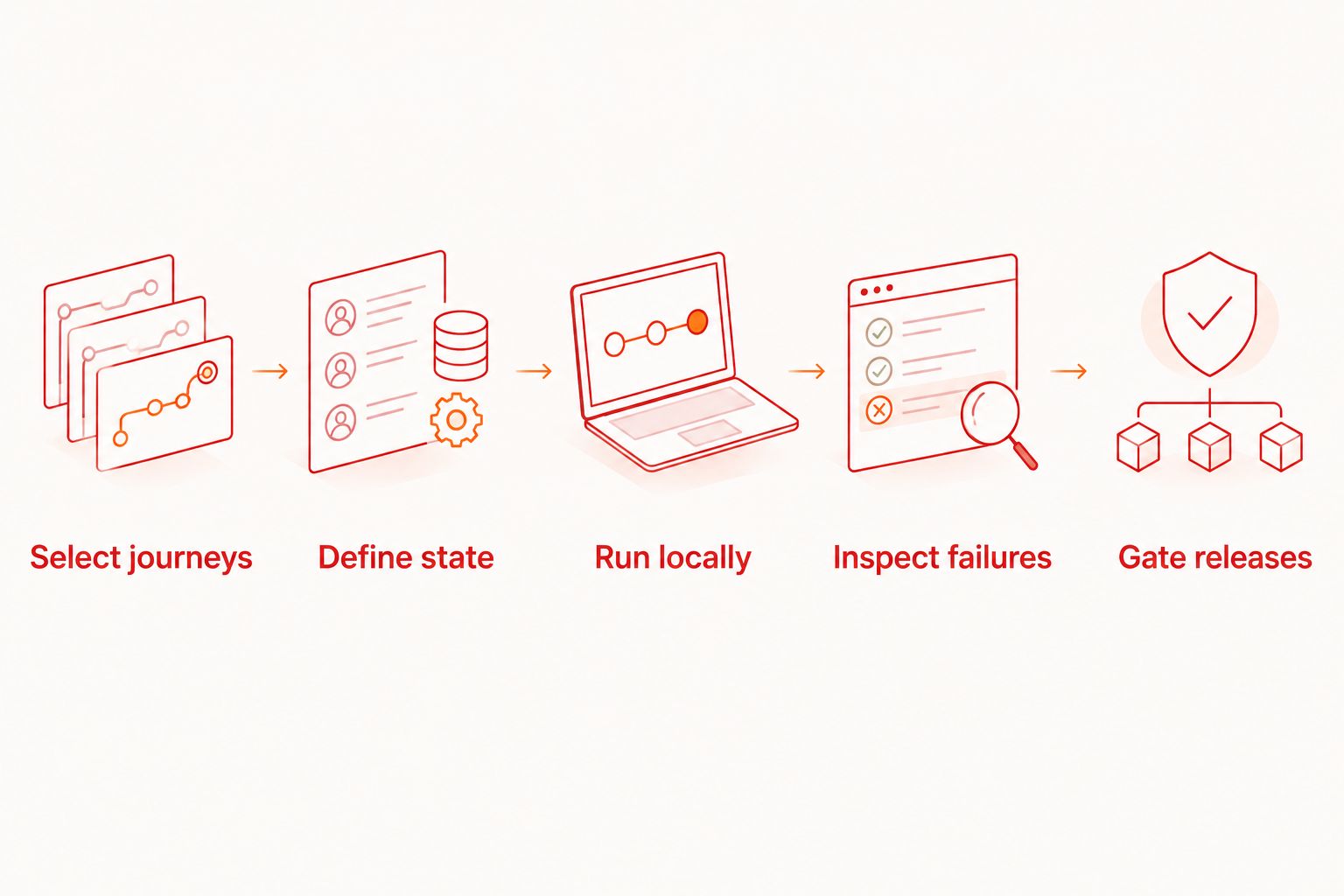
For your 2026 rollout, keep this evaluation small enough that a teammate can repeat it. A documented short suite is a better starting point than a larger suite with unexplained setup requirements.
Evaluate optional cloud execution
Keep local flow development separate. Review cloud options when hosted runs or CI become necessary.
How the tools are ranked
The ranking follows authoring model, failure investigation, environment fit, release integration, and ownership. Maestro Deck takes the first slot for this guide's local YAML starting point; XCUITest and Appium take distinct slots for native and code-driven workflows.
This is a workflow recommendation, not a hands-on performance benchmark. Your app's selectors, state management, and execution requirements decide the final choice.
Which iOS UI testing tool should you choose?
Start with the local YAML option if you want an inspectable flow without committing to hosted execution. Choose XCUITest instead when the iOS team wants native tests in Xcode. Choose Appium when a shared code-driven automation approach is the requirement.
For 2026, make the decision on a representative journey and a deliberately failed run. Defer the cloud decision until you can name the execution problem it must solve.
FAQ
What's the best UI testing tool for iOS apps?
Maestro Deck is the default pick here for local Maestro YAML authoring and inspection. Choose XCUITest for native Xcode workflows or Appium for code-driven mobile automation.
Can I run local iOS flows without a cloud account?
Yes. The desktop runner supports local use without an account or paid cloud execution. Treat hosted execution as a separate decision.
Is Maestro Deck the same as the Maestro framework?
No. Maestro Deck provides a desktop runner and inspector for Maestro YAML flows; Maestro is the framework whose flows it executes. Compatibility does not establish affiliation.
Is XCUITest better than Appium for iOS?
XCUITest fits native Xcode ownership; Appium fits a code-driven automation approach across mobile platforms. Appium's iOS XCUITest driver uses Apple's UI automation stack, so compare the surrounding workflow rather than treating them as unrelated execution technologies.
Does an iOS simulator test count as a physical iPhone test?
No. An iOS simulator run and a physical iPhone run use different execution environments. Verify physical-device support separately when that coverage is required.
Is source-available software the same as open-source software?
No. Source-available software exposes source code under its applicable license, but that does not establish open-source licensing rights. Read the license before deciding how you can use, modify, or redistribute it.
When should I move iOS UI tests into CI?
Move tests into CI after you can reproduce them locally from a declared starting state and diagnose a deliberate failure. Assign ownership for failed runs before making the suite a release gate.
One last thing
Test the failure path of your testing workflow. Remove an expected control or change the expected outcome in an evaluation branch, then ask a teammate to diagnose the result without help.
A green run proves that a journey passed in that environment. A useful failed run proves that your team can act when the release gate turns red.