
Instead of manually signing in and waiting for sessions to expire, use mobile app automation testing to check clean login, expired credentials, and reauthentication as separate flows. Start with Maestro Deck, the free local desktop runner, and give each flow a controlled authentication state before adding it to your release workflow.
- Maestro Deck suits developers who want local mobile app automation testing with Maestro YAML flows.
- Test login, token refresh, and session expiry separately; each needs a different starting state.
- Use controlled expiry in a test environment instead of waiting for production session lifetimes.
- Keep local execution independent of optional paid cloud execution for CI.
Why this matters
A successful login test proves that valid credentials reach an authenticated screen. It does not prove that expired credentials lose access, that refresh succeeds, or that signing in again restores the correct account.
Maestro Deck is best for developers and QA engineers who want a free local runner and inspector for Maestro YAML end-to-end flows. Maestro Deck is the desktop tool; Maestro is the framework whose YAML flows it runs. Treat them as distinct projects, not interchangeable names or evidence of affiliation.
For your 2026 release suite, define authentication outcomes before automating taps. Otherwise, a flow can pass because an old session skipped the login screen entirely.
Before you start
- Prepare the runner and app. Install the desktop runner, make your test build accessible on the intended target, and obtain the access needed to inspect its interface. Use a non-production authentication environment.
- Prepare isolated test identities. Use accounts you control, known credentials, and a documented way to restore account state. Keep secrets outside committed YAML and diagnostic output.
- Resolve the expiry gotcha first. Identify how your authentication system expires access tokens, refresh credentials, and server sessions. Expiring an access token alone does not necessarily sign a user out: successful refresh can keep the session authenticated.
Agree on expected behavior with whoever owns authentication. Decide whether session expiry returns users to login immediately, after a protected request, or after the app resumes. Your test must exercise the event that actually triggers the check.
The examples below describe application states and assertions rather than assuming button labels, selector names, or a particular identity provider. Map them to your app's actual controls and supported test setup.
Authentication states and test boundaries
Use 3 authentication states as your starting model: signed out, signed in, and expired with no valid refresh path. Test refreshable expiry separately because its expected result is different.
| Scenario | Best for | Required setup | Benefit | Limitation |
|---|---|---|---|---|
| Clean login | Checking credential entry and authenticated access | Signed-out app and valid test account | Exercises the visible login journey | Does not establish expiry behavior |
| Refreshable expiry | Checking session continuity | Expired access token with valid refresh credentials | Tests continued access without another login | Requires control over token state |
| Full session expiry | Checking loss of authenticated access | Session rejected with no valid refresh path | Tests the authentication boundary | Requires a controlled backend or identity setup |
| Reauthentication | Checking recovery after expiry | Expired session followed by valid credentials | Tests account restoration and safe continuation | Needs an explicit return-destination policy |
A login screen is not proof that protected data is inaccessible. Pair the screen assertion with an attempt to open a protected destination and an assertion that its private content is absent.
Clean-state configuration
- Choose one login journey. Start with the authentication method your release smoke suite needs. Keep password entry, external identity redirects, and biometric unlock in separate flows when their setup differs.
- Define the reset boundary. Specify which local state must be removed and which server-side state must remain. Clearing app data and revoking a server session are different operations; do not treat either as a substitute for the other.
- Establish signed-out state. Use your project's supported reset procedure. Confirm the app displays the signed-out entry point and does not show the previous user's protected content.
- Inspect the controls. Identify the account field, credential field, submission control, authenticated marker, and protected destination. Prefer stable accessibility identifiers over coordinates or labels that change with localization.
- Record the account expectation. Choose a visible account-specific marker that contains no sensitive information. A generic home screen can pass even when the wrong account is active.
Expected result: the flow begins signed out, with no dependency on a previous run. You know which visible assertion establishes the intended identity after login.
For your 2026 test setup, make reset behavior part of the flow contract. A test that requires someone to clean up a simulator manually is not ready for unattended execution.
Login-flow configuration
- Create the login flow. Write a Maestro YAML flow that starts from the agreed signed-out state. Use your app's actual selectors and the syntax supported by your installed framework version.
- Enter the test credentials. Populate the account and credential controls through your project's supported secret-injection mechanism. Do not copy production credentials into the test repository.
- Submit once. Activate the actual submission control. Repeated taps can hide a disabled-state defect or create a different request sequence from the one you intended to test.
- Wait for the authenticated outcome. Assert a stable authenticated marker, not merely the disappearance of a loading indicator. Then assert the expected account marker.
- Open a protected destination. Confirm that the destination loads and contains the expected non-sensitive fixture content. This checks that the session works beyond the landing screen.
- Repeat from reset. Require 2 consecutive local runs, each starting from the documented clean state, before adding this flow to automated release checks. This is a suggested acceptance check, not a reliability guarantee.
Expected result: valid credentials establish the correct identity and allow access to the selected protected destination.
Avoid fixed delays as a substitute for checking the resulting interface. Use the approach in handling asynchronous screens without fixed waits when login crosses loading screens or redirects.
Session-expiry and recovery configuration
- Establish a valid session. Run the login setup and confirm the intended account. Keep this prerequisite explicit even if you later extract it into a reusable flow.
- Expire the session deliberately. Use a supported test-environment mechanism to create the exact state under test. For full expiry, ensure refresh cannot silently restore access. Do not add an undocumented token-editing shortcut to the app.
- Trigger authentication enforcement. Resume the app, open the protected destination, or perform the protected request specified by your application contract. Expiry alone is not the triggering user action.
- Assert denied access. Confirm the expected signed-out or session-expired interface. Assert that protected content is absent and that backing out does not reveal an authenticated screen.
- Sign in again. Enter the controlled account's credentials and submit through the normal interface. Assert the account marker again rather than assuming the restored session belongs to the original user.
- Check the return destination. Verify whether the app returns to the interrupted destination or its default authenticated screen. Use the agreed product behavior, not a universal assumption about what reauthentication should do.
Expected result: the expired session cannot expose protected content, and valid reauthentication restores the intended account and destination.
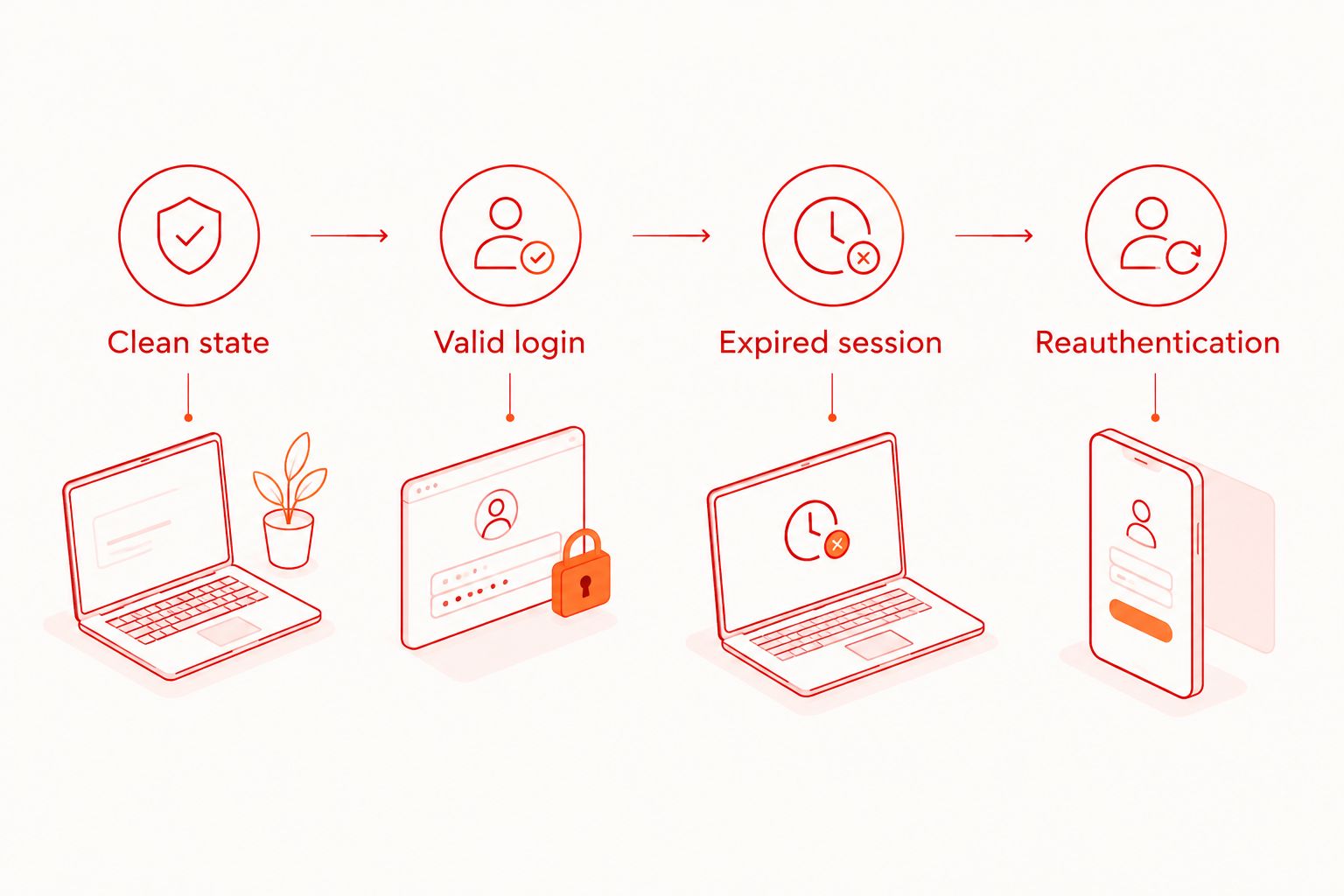
For the 2026 release gate, keep these outcomes separately identifiable: Clean state, Valid login, Expired session, and Reauthentication. A single final success assertion makes the failing boundary harder to locate.
Variant: refresh access without asking users to sign in
A refresh test should expect continued access, not a login screen. Use it when your authentication contract permits an expired access token to be replaced using valid refresh credentials.
- Establish a valid session for the controlled account.
- Expire only the access credential through the supported test setup, preserving valid refresh credentials.
- Trigger a protected request through the app interface.
- Assert that the protected destination remains accessible and the account marker remains correct.
- Assert that the app does not unexpectedly return to credential entry.
Expected result: the user remains authenticated after the refresh path completes. Keep the full-expiry flow separate so a successful refresh cannot mask a failed sign-out boundary.
A UI flow establishes the user-visible result. If you also need proof of token rotation, request counts, or revocation handling, add assertions at the authentication or API layer. Do not claim those internal properties from a screen assertion alone.
Troubleshooting
Login passes without entering credentials
Fix the starting state. The app can retain a valid session between runs. Assert the signed-out entry point before credential entry, and fail the test if the authenticated marker is already visible.
Check server state as well as local state when your authentication design requires both. Reinstalling or resetting the app is not a universal server-session revocation mechanism.
Expiry never produces a login screen
Check whether refresh is still valid. An expired access token and an expired session are different conditions. Confirm the full-expiry fixture removes the valid refresh path, then perform the action that checks authentication.
Also confirm that the test environment uses the intended expiry configuration. Do not compensate for an incorrect fixture by increasing a fixed sleep.
The login assertion fails during a redirect
Assert the destination, not a transient screen. Loading indicators and redirect pages are intermediate states. Use a stable authenticated marker and state-aware waiting instead of immediately tapping the next control.
If the flow opens an external authentication surface, inspect that surface separately. Selectors from your app's login screen do not automatically describe an external identity page.
The flow signs in as the wrong account
Inspect shared identity state. External authentication can retain an existing identity independently of your app's local state. Confirm the account marker after every login and isolate accounts used by concurrent runs.
Do not accept a generic dashboard assertion as proof of the intended identity. It establishes destination, not ownership.
Local execution passes but CI fails
Compare inputs before changing assertions. Check the app build, target environment, test credentials, fixture setup, and authentication redirect configuration. Confirm that CI can reach the intended authentication service.
Retain failure output without exposing credentials or tokens. Reproduce the same starting state locally before weakening a security-relevant assertion.
Customize your workflow
Keep your 2026 authentication suite small enough to diagnose. Start with login, full expiry, and recovery; add refresh continuity when your application supports it. Add invalid credentials, explicit logout, and account switching as separate cases with their own setup.
Maestro Deck supports local development of these flows; optional paid cloud execution addresses a different execution need. Local use does not require a cloud account.
| Execution option | Best for | Advantage | Trade-off |
|---|---|---|---|
| Local desktop runner | Developers writing and debugging authentication flows | Free local execution and inspection | You manage the local target and test environment |
| Optional cloud execution | Teams adding hosted execution to CI | Moves execution beyond an individual workstation | Requires cloud setup and test-data review |
Do not equate simulator or emulator execution with physical-device coverage. Select targets according to the behavior you need to test, especially when authentication depends on device-specific capabilities.
Keep credentials, expiry controls, and expected account markers environment-specific. Share the visible login steps only when their behavior is genuinely identical; excessive reuse can hide differences between authentication methods.
FAQ
How do I automate login testing for a mobile app?
Start from a confirmed signed-out state, enter controlled test credentials, and assert both the authenticated destination and the intended account. Open a protected destination to confirm the session works beyond the login screen.
How do I test mobile session expiry without waiting?
Use a supported test-environment mechanism to create an expired session. Then trigger the app action that checks authentication and verify that protected content is inaccessible.
Why does my app stay logged in after the access token expires?
Valid refresh credentials can allow the app to replace an expired access token without another login. Test refreshable expiry separately from full session expiry.
Can I use Maestro Deck without a cloud account?
Yes. Maestro Deck provides a free local desktop runner and inspector; optional paid cloud execution is separate from local use.
Is Maestro Deck the same thing as the Maestro framework?
No. Maestro Deck is a desktop runner and inspector for Maestro YAML flows; Maestro is the testing framework. The names do not establish affiliation.
Should I clear app data before every authentication test?
Choose the reset procedure that establishes the state each test requires. Clearing local app data does not by itself establish every server-side authentication condition, and a refresh test needs an existing session.
Does a passing login flow prove authentication is secure?
No. A passing login flow establishes only its asserted user-visible outcomes. Authorization enforcement, token handling, and other security properties need tests at the relevant application and service boundaries.
One last thing
Test one protected destination after expiry before testing the login screen. A familiar login prompt can coexist with stale protected content elsewhere in the interface. For your 2026 release checklist, make denied access the primary assertion and the prompt a separate interface assertion.